Floral Wedding Place Card Template: Streamlining Event Stationery Workflows
Integrating a floral wedding place card template into your event planning workflow bridges the gap between high-end design aesthetics and practical budget management. For professionals, DIY brides, and event coordinators, stationery often represents a significant bottleneck in the production timeline. This specific digital asset eliminates the need for custom graphic design services or expensive pre-printed orders by providing an instant download solution that functions within software you likely already own. The template serves as a foundational layer in the broader event organization process, allowing for rapid iteration and last-minute adjustments without compromising visual consistency.
Unlike physical mockups or static PDFs, this resource is a fully editable production file. It fits into the workflow at multiple stages: during the initial mood boarding phase to visualize table settings, during the active guest list management phase to update names in real-time, and even post-event if reprinting is necessary due to damage or errors. By utilizing both Microsoft Word and Photoshop formats, the template accommodates varying levels of technical proficiency, ensuring that the execution remains smooth regardless of whether the user is a seasoned designer or a first-time planner.
Technical Specifications and File Compatibility
Understanding the technical parameters of the Floral Wedding Place Card Template is essential for preventing printing errors and ensuring professional results. The package includes two distinct file types to maximize accessibility across different workflows:
- Microsoft Word (DOCX): Compatible with versions 2007 through 2013 and newer. This format is optimized for users who prioritize text editing speed and mail merge functionality over complex layer manipulation.
- Adobe Photoshop (PSD): Compatible with CS6 and newer. This format preserves layers for users who require precise color correction, font styling adjustments, or integration with other design assets.
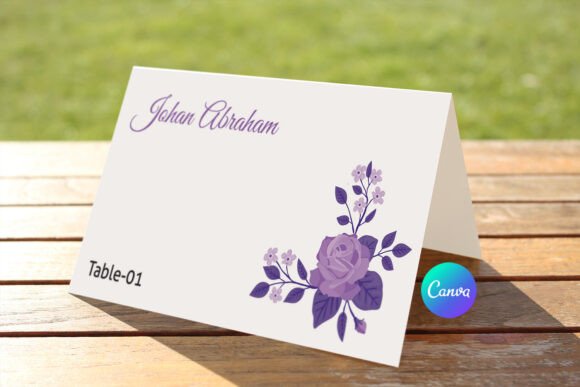
The dimensional specifications are configured for standard commercial and home printing. The unfolded size measures 3.5 x 4 inches, which folds down to a finished size of 3.5 x 2 inches. Crucially, the file includes a 0.25-inch bleed area. In professional printing workflows, bleed is non-negotiable; it ensures that when the cards are trimmed or folded, the floral artwork extends seamlessly to the edge without leaving unprinted white borders. Ignoring this specification during the setup phase is the most common cause of amateur-looking results. When configuring your printer settings or communicating with a print shop, always verify that the document scale is set to 100% to maintain these critical dimensions.
Workflow Integration: Editing in Microsoft Word
For many event planners and couples, Microsoft Word offers the lowest barrier to entry for personalization. The DOCX version of this floral wedding place card template is structured to allow direct text replacement without disrupting the underlying floral imagery. To integrate this into your existing data management routine, open the file and select the text box using the cursor. You can then type individual names or, more efficiently, utilize Word’s Mail Merge feature linked to your Excel guest spreadsheet.
This integration transforms the template from a static design into a dynamic database output tool. Instead of manually typing 150 unique names, you map the "Name" and "Table Number" fields from your spreadsheet directly to the template placeholders. This method significantly reduces transcription errors and allows for instant updates if RSVPs change days before the event. When changing fonts, ensure you select the entire text block to maintain alignment. If the default font does not match your wedding typography, simply highlight the text and apply your chosen typeface. Always perform a test print on plain paper before using premium cardstock to verify that margins and fold lines align correctly with your specific printer’s feed mechanism.
Advanced Customization via Adobe Photoshop
Users with access to Adobe Photoshop CS6 or later can leverage the PSD file for granular control over the floral elements and typography. This workflow is ideal for those who need to match specific brand colors or adjust the opacity of the floral background to improve text readability. Upon opening the file, you will find organized layers separating the background art from the editable text areas.
To modify the content, select the Text Tool (T) and click directly on the placeholder text. This vector-based approach ensures that changing the font size or family does not result in pixelation. Unlike rasterized images, the text remains crisp at any resolution. For users looking to customize the floral palette, use adjustment layers such as Hue/Saturation or Color Balance above the floral layer but below the text layer. This non-destructive editing workflow allows you to experiment with seasonal color variations—shifting from spring pastels to autumn tones—without altering the original master file. Remember to save your working file as a PSD to retain editability, and only export to PDF or JPG when sending to a professional printer.
Typography and Design Consistency
The template utilizes the "Exp" font to achieve its intended aesthetic, but successful implementation often requires adapting typography to fit your specific event identity. Typography acts as the primary interface between the guest and the logistical information; therefore, legibility must take precedence over decoration. When replacing the default font, consider the hierarchy of information. The guest's name should generally be larger or bolder than the table number to facilitate quick scanning upon arrival.
If you choose a script font to complement the floral design, ensure it has sufficient x-height and spacing to remain readable at small sizes. Avoid overly ornate display fonts for table numbers, as these must be instantly recognizable from a distance. Test your font choices by printing a sample card and placing it on a table setting under the actual lighting conditions of your venue. Lighting significantly impacts contrast; a font that looks perfect on a backlit monitor may disappear against a dark tablecloth in dim reception lighting. Maintaining typographic consistency across all stationery items—menus, programs, and place cards—creates a cohesive visual narrative that elevates the perceived value of the event.
Printing Logistics and Quality Control
The final stage of the Floral Wedding Place Card Template workflow involves physical production. Whether printing at home or outsourcing to a professional service, preparation dictates quality. For home printing, use cardstock specifically designed for inkjet or laser printers, matching the weight to your printer’s specifications (typically 80lb to 110lb cover stock). Set your printer driver to "High Quality" or "Photo" mode to ensure the floral gradients render smoothly without banding.
If outsourcing, provide the print shop with a high-resolution PDF exported from either Word or Photoshop. Confirm that they acknowledge the 0.25-inch bleed and the specific fold line placement. Request a hard proof before approving the full run. This quality control step allows you to check color accuracy, paper texture compatibility, and trim alignment. Professional printers can also offer scoring services, which create a clean, crack-free fold line that is difficult to achieve with manual folding tools. Integrating this verification step prevents costly reprints and ensures the final product matches the digital preview.
Support and Resource Management
Even with user-friendly templates, technical questions or customization needs may arise during the execution phase. The creator provides direct support for troubleshooting file compatibility, font issues, or layout adjustments. If you encounter difficulties with the Mail Merge function in Word or layer visibility in Photoshop, reaching out promptly can prevent project delays. Additionally, if your vision requires modifications beyond the scope of the standard template, custom design services are available to tailor the artwork to specific requirements.
Efficient resource management also involves organizing your digital assets. Create a dedicated project folder containing the original template files, your modified working files, exported print-ready PDFs, and your guest list spreadsheet. Version control is vital; naming conventions like "PlaceCards_Final_v2_PrintReady.pdf" prevent confusion when multiple revisions occur. After successfully completing your project, leaving a review helps refine the resource for future users and supports the continued development of affordable, accessible design tools. By treating this template as part of a systematic workflow rather than a disposable asset, you maximize both efficiency and creative potential.